What We Found
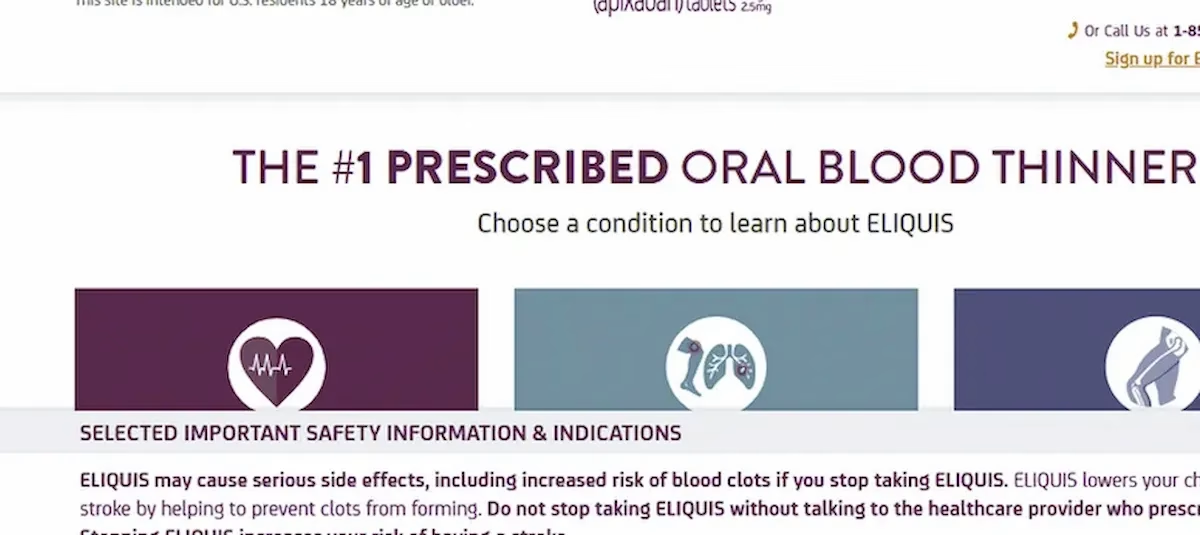
During a recent audit, we tested a site using only the keyboard. No mouse. Just the Tab key to move through interactive elements on the page.
Focus moved through links, buttons, and input fields as expected. But when the navigation sequence reached a dropdown, focus jumped right past it. The dropdown never received focus. No outline appeared. There was no way to open it, select an option, or interact with it at all using the keyboard.
With a mouse, the dropdown worked perfectly. From a keyboard, it didn’t exist.
WCAG 2.1.1: Keyboard. Severity: High.
Who This Affects
This isn’t a niche issue. Keyboard navigation is essential for a much wider group of users than most people realize.
People with motor impairments who can’t use a mouse rely on the keyboard entirely. So do users with repetitive strain injuries, people using switch devices, and users navigating with assistive technology like screen readers. Even power users who prefer keyboard shortcuts over mouse clicks are affected.
If the dropdown controls a required selection, like choosing a dosage, selecting a location, or picking a plan option, the user simply can’t proceed. The task is blocked.
Why This Happens
This issue almost always comes down to custom components. When developers build a dropdown using div and span elements instead of a native select element, the browser doesn’t know it’s supposed to be interactive. Native HTML form controls come with keyboard support built in. You get Tab focus, Enter/Space to open, arrow keys to navigate options, and Escape to close, all for free.
Custom components get none of that automatically. If the developer doesn’t explicitly add tabindex to make the element focusable, wire up keyboard event listeners for Enter, Space, arrows, and Escape, and implement the correct ARIA roles, the component simply doesn’t work without a mouse.
The other common cause is developers only testing with a mouse. The dropdown looks and behaves correctly during visual QA, so it ships. Nobody tabs through the page to check.
What Keyboard Access Should Look Like
A keyboard user should be able to:
- Tab to the dropdown and see a visible focus indicator
- Press Enter or Space to open it
- Use arrow keys to move between options
- Press Enter to select an option
- Press Escape to close without selecting
Try it yourself right now. Go to any website and press Tab repeatedly. Watch where focus goes. If you hit an interactive element you can’t reach or operate, that’s a WCAG 2.1.1 failure.
The Fix
The simplest fix is to use native HTML. A standard select element handles all keyboard interaction automatically:
<label for="brand-choice">Choose an option</label><select id="brand-choice"> <option value="1">Option 1</option> <option value="2">Option 2</option></select>If the design requires a custom dropdown, it needs explicit keyboard support and ARIA roles:
<div role="combobox" aria-expanded="false" aria-controls="brand-list" tabindex="0"></div><ul role="listbox" id="brand-list"> <li role="option">Option 1</li> <li role="option">Option 2</li></ul>Plus keyboard event handling for Enter, Space, arrow keys, and Escape. It’s significantly more work than using a native element, which is exactly why the recommendation is almost always: use native HTML unless you have a very specific reason not to.

Learn more about our human-led accessibility solutions that enable access for all
The Bigger Picture
Keyboard accessibility is one of the easiest things to test and one of the most commonly missed. You don’t need a screen reader. You don’t need special tools. Just put your mouse aside and try to use the page with only the Tab key, Enter, Space, and arrow keys.
If you can’t reach something, neither can a large portion of your users. And unlike some accessibility issues that degrade the experience, a component that’s completely unreachable via keyboard is a total blocker. There’s no workaround. The user is stuck.
WCAG 2.1.1 is clear: all functionality must be operable through a keyboard. Not most functionality. All of it.
Bottom Line
Accessibility is defined by operability, not appearance. A dropdown that looks perfect on screen but can’t be reached with the Tab key is broken for every user who doesn’t use a mouse. Keyboard access isn’t an enhancement. It’s a baseline requirement.
Keyboard accessibility ensures users who can’t use a mouse can navigate, open, and select options in dropdowns using keys like Tab, Enter, and arrows.
Users cannot focus on or interact with it, making it impossible to complete tasks like selecting options or submitting forms.
Custom components built with divs or spans don’t have built-in keyboard support, and require manual implementation of focus, roles, and key interactions.
Use native <select> elements whenever possible, or add proper tabindex,ARIA roles, and keyboard event handling for full functionality.